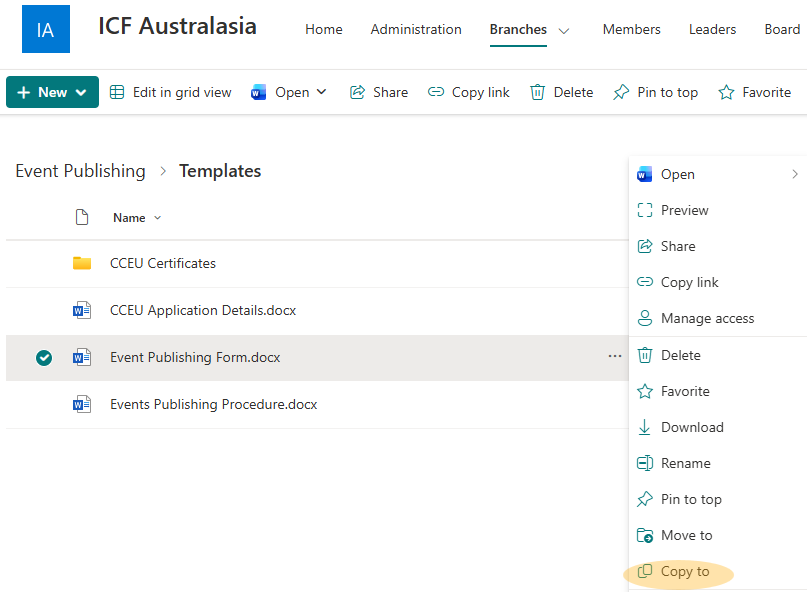
- In ICF Australasia Share Point - Branches/ Event Publishing/Templates/ Event Publishing Form
- Find the Event Publishing Form and select the ....
- This will bring up options for this document
- Copy to
- Select to copy this document in Share Point to Branches/Event Publishing/Events + Current Year/Month that event will be held in/Branch name - event name (create a new folder for a new event) and rename to event name publishing form
- Once the copied to the folder, open and complete the form.
- Once the form is completed, you will have the information required to set up the event in Mition (ICF Australasia website). You can do this or you can email admin to create the event on your behalf.
If you do not have access to these folders in SharePoint - contact admin@icfaustralasia.com and request access.
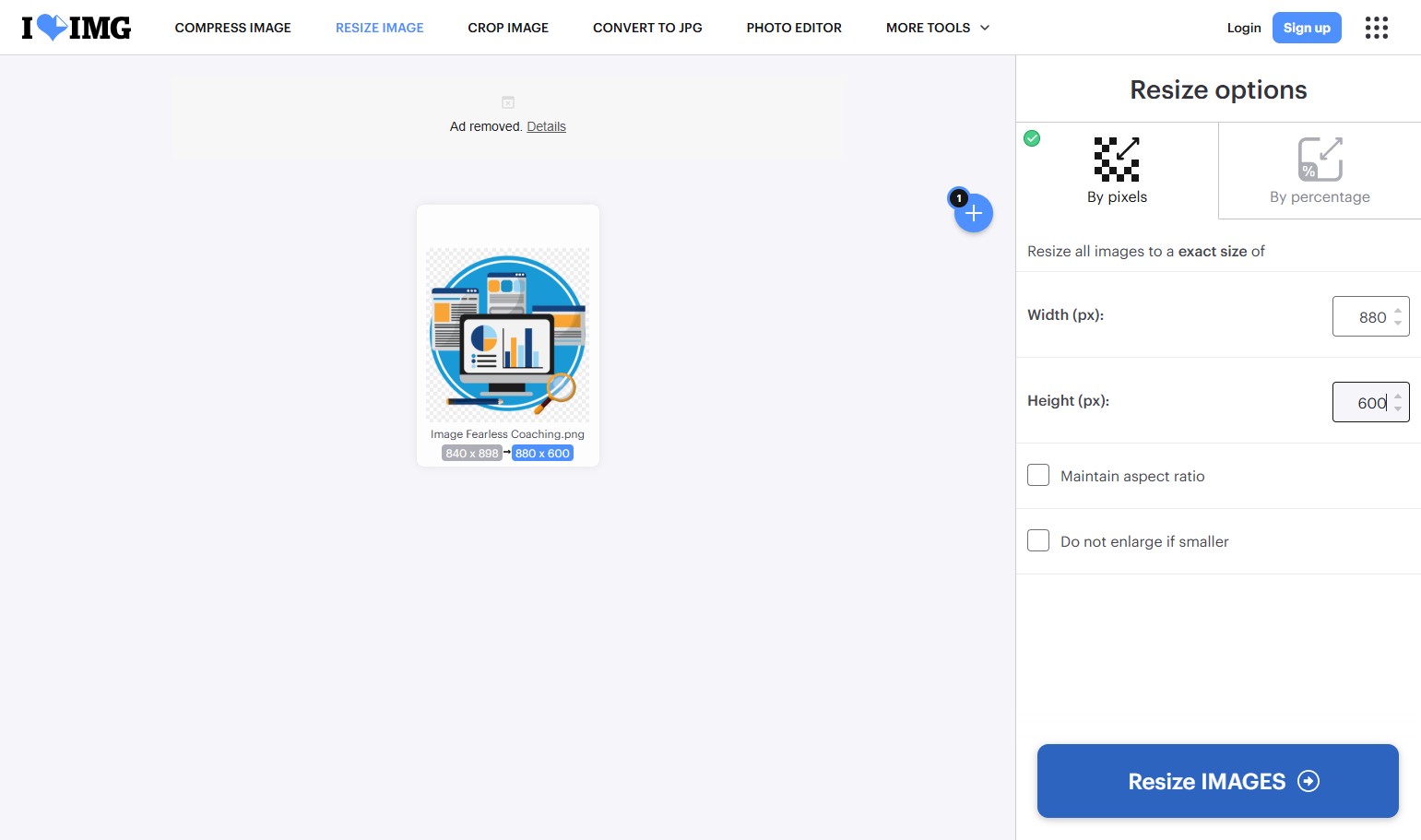
- The image size for the event needs to be 880 x 600px.
- If you are unsure how to resize an image - see these instructions
- Save the image in Mition to in the Doc Library as outlined in the above instructions
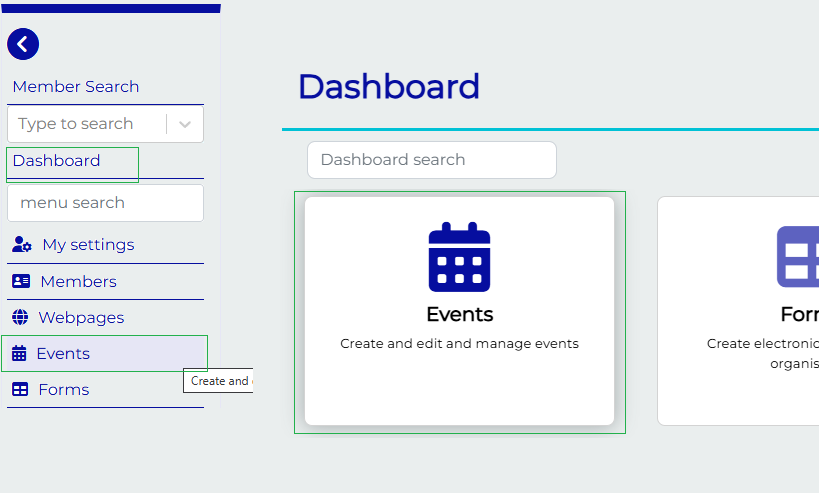
- Login (using your icfaustralasia.com email account). On the left hand toolbars select Events, or you can find it by going to the Dashboard and then find "Events", if you cannot see an Events icon, contact your branch administrator to give you access, this could mean you are logged on as a member not an administrator.
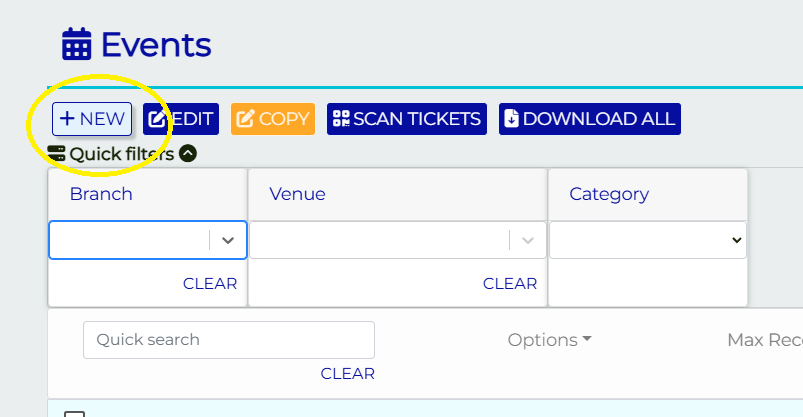
- Click the +New button which will open the Event Form.
- Branch: Select your branch
- Event Category: Select the Event Category (e.g. Virtual Event, Hybrid Event, In-Person)
- Title: Name your event
- Description: This is a short summary of event (1 sentence)
- Frequency: (ignore the name of this field) Here put the price model ie Members $20 / Non Members $50 - this shows in the Event summary page, this does not charge the ticket pricing when booking. This is an information only field
- Tags: Only add your Branch if this is in Person event. Also add if CCEUs: Pending/ CCEUs: Nil or multiple tags if CCEU: 1.0 CC, CCEU: 0.75 RD
- Hero Image: See step 6
- User: Set the user to be the event owner/co-ordinator, using volunteer profile (ie icfaustralasia.com email address)
- Location: Add the venue if required
- Venue: You can select an option in here, if not contact admin@icfaustralasia.com to add. Not required for Virtual
- Date and Time: Add a Start Date and Time and End Time and make sure you select the right time zone.
- Event Details (at the bottom) : Enter further details of the event here, often this information is supplied by the speaker. Great to include 4-5 Key Learning Takeaways and an event program if applicable.
- Event Details Extended: Here there is room for more information if required. If this is a paid event, please include the cancellation policy (remove last dot point if there is no catering).
Cancellation policy
We understand things change and there are times when plans made don't work out. If you need to cancel your ticket there will be a $30 administration fee charged. You are welcome to transfer or sell your ticket at no charge.
Please advise the event co-ordinator if you are no longer able to attend, wish to request a refund, have transferred or sold your ticket.
Cancellation conditions:
- If ticket price is under $30 – no refunds given
- Under 48hrs – no refunds given
- If catering involved – a time limit of 1 week be set for no refunds given
Save your event at this stage. After saving the event, some more input fields will appear.
Only enabled events will publish to the website, best practice is to leave it disabled until until all the details are completed and correct. Admin will need to check and enable to event to be live on the website.
- Pricing: Free event - Don't use the Free event tick box option - please use under Ticket category select - Free
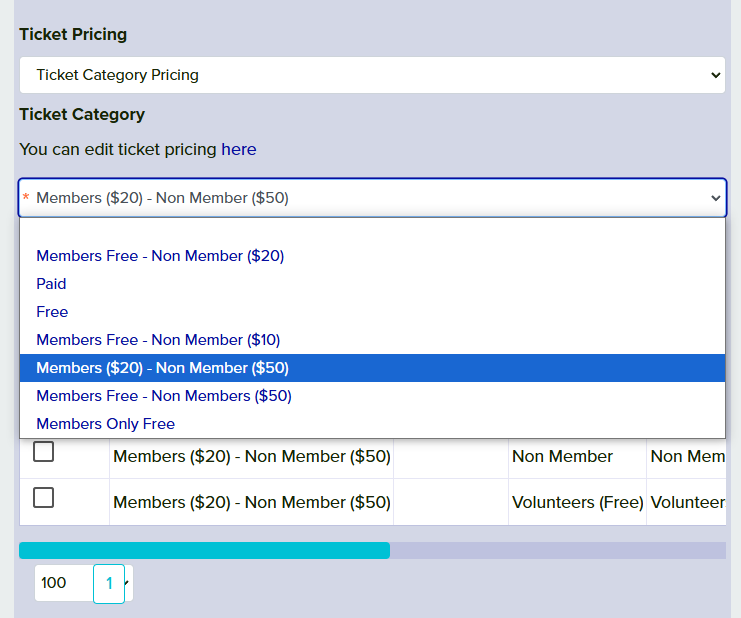
- If this is a paid event, untick "Free event" and select a Ticket Pricing Category.
- A list of Ticket Pricing Categories will appear for you to pick from. If you are not sure which one ask admin@icfaustralasia.com for assistance.
There is a ICF Event Pricing policy, this can be found on the website https://www.icfaustralasia.com/about/policies. See this policy for the pricing of events.
Most events should fall under this pricing structure. End of Year events or Conferences, especially where catering is involved may need to be priced accordingly.
If the pricing category you need is not available, contact admin@icfaustralasia.com for assistance.
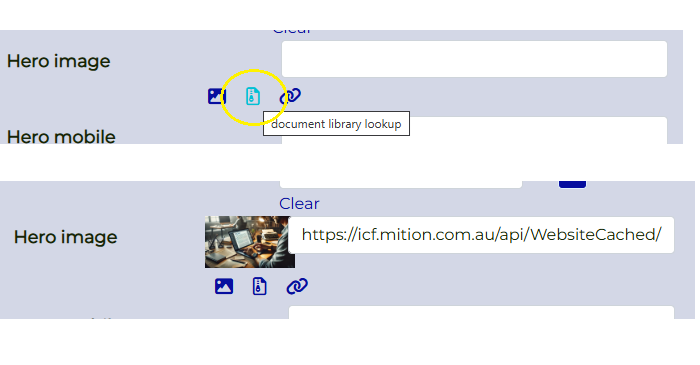
- Add images: Select a Hero image. Choose an already saved image from your media library. These images are to be 880 x 600 pixels in size. The mobile Hero image is optional, by default it will use the main one. These images are shown on event lists and on the event main page.
- Max Capacity : Set the maximum capacity, remember to save a seat for your team and speaker.
- Event Contacts: This is where you can add guest speakers, presenters, key volunteers who will be highlighted on the event page. The contact must be added in Mition to be selected from the dropdown list. See our course titled "Adding an event contact" Save your event at this stage.
Tip: If you'd like an event program for larger events such as conferences or multi day events with many different contacts, use a webpage and the program card web component
At the bottom of the event editor, click Advanced Settings button
- Registration open/close dates: Choose when to allow and close off event registrations automatically. The open date will dictate when the event is visible on the website also.
- Custom field section : Select from a list of forms e.g. dietary requirements or preferences. This gives a extra option when person is booking ticket
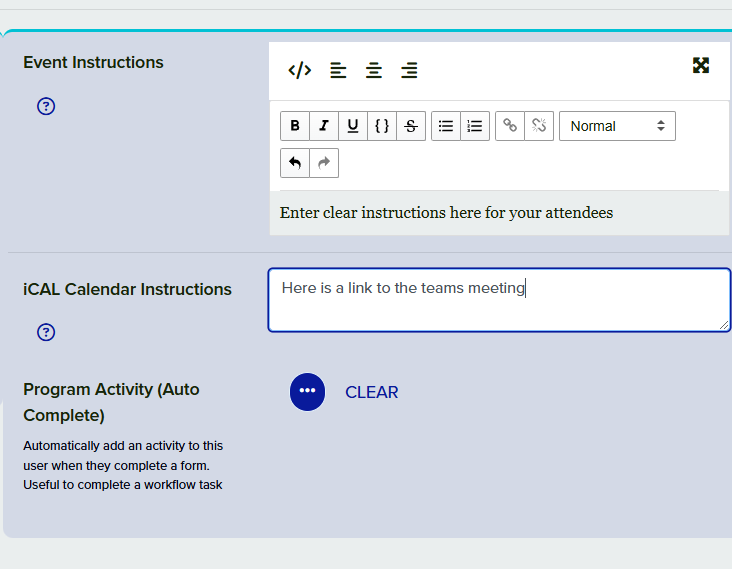
- Event Instructions & iCAL Calendar Instructions : Once a user has subscribed (and paid) these will be included in their ticket details (see my settings > events) as well as their event confirmation and reminder emails. In this section you could include detailed location instructions, or for a virtual event, here is where you would copy in the Zoom / Teams video link. (The link should be placed in both fields) This will allow your attendees to access the event information straight from their emails and their calendar. The .ICS file will also contain a link directly to their event ticket, should they need to cancel their ticket. See further instructions on how to set up Zoom/Teams Meetings.
- Program Activity (Auto Complete) : Used in later stages when a member has been confirmed to have attended an event, this will automatically add points and/or certificates.
- Gallery : Add more images to your event.
Save your event at this stage.
Only enabled events will publish to the website, best practice is to leave it disabled until until all the details are completed and correct.