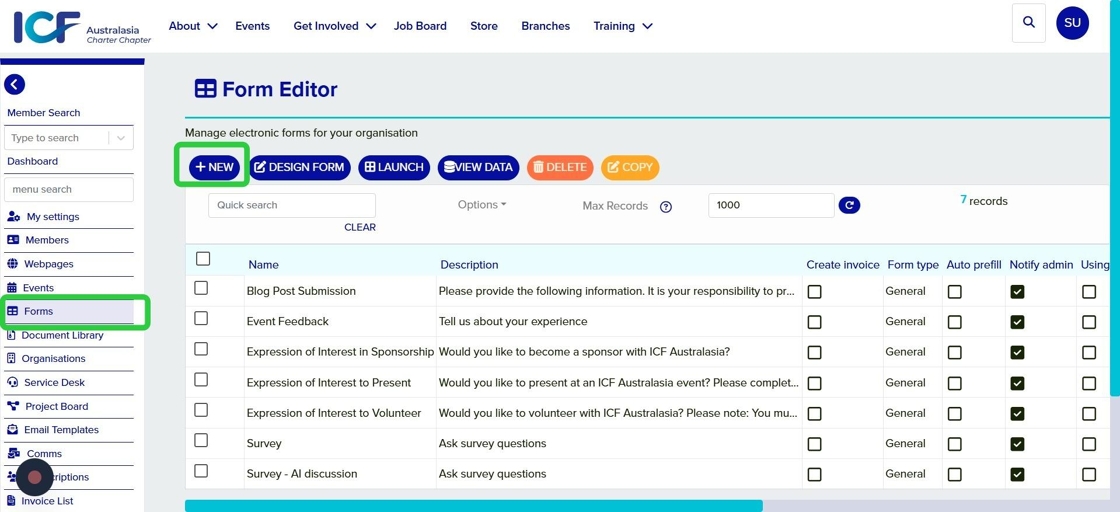
- Login (using your icfaustralasia.com email account). On the left hand toolbars select Forms, or you can find it by going to the Dashboard and then find "Forms"
- Select New to create a brand new form
- You can also copy an existing form to save time
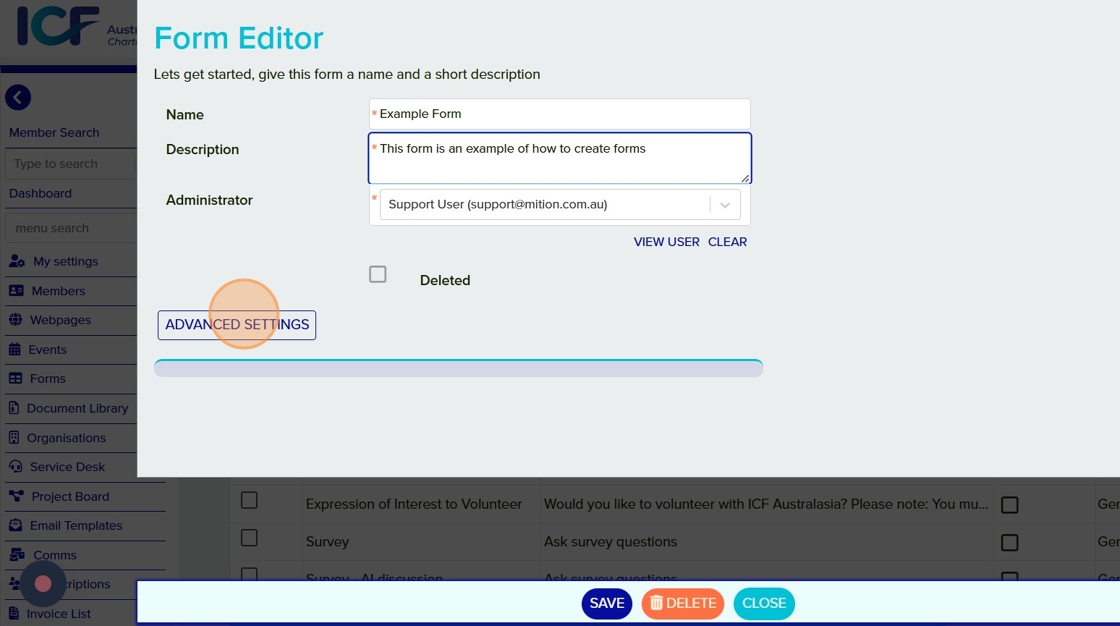
- Name: The display name of your form. This will appear as the form heading
- Description: A brief description of your form's purpose
- Administrator: Who manages this form, and who will be notified of form responses
From here you can either save the form and go straight to adding your form fields, or select Advanced Settings to further customise your form
Advanced Settings opens a list of optional customisations
- Thank you message: Edit the message your users see when they complete the form
- Default Button Text: Edit the button that users will click to complete your form, this could be changed to "Submit", "Save", "Apply" etc
- Form Type: General Form for data collection, Paid Form for submissions requiring a payment and a supplier form used to connect members to "suppliers" automatically
- Program Activity: Use this to assign an activity to a form, for example, if completing a form awards a user with 1 CCEU point, you would assign the relevant activity here
- Notify Admin: Check the box for yes, leave unchecked for no
- Using Email Template: Check this box to use a custom email template or leave blank to use the standard email notification
Save the changes
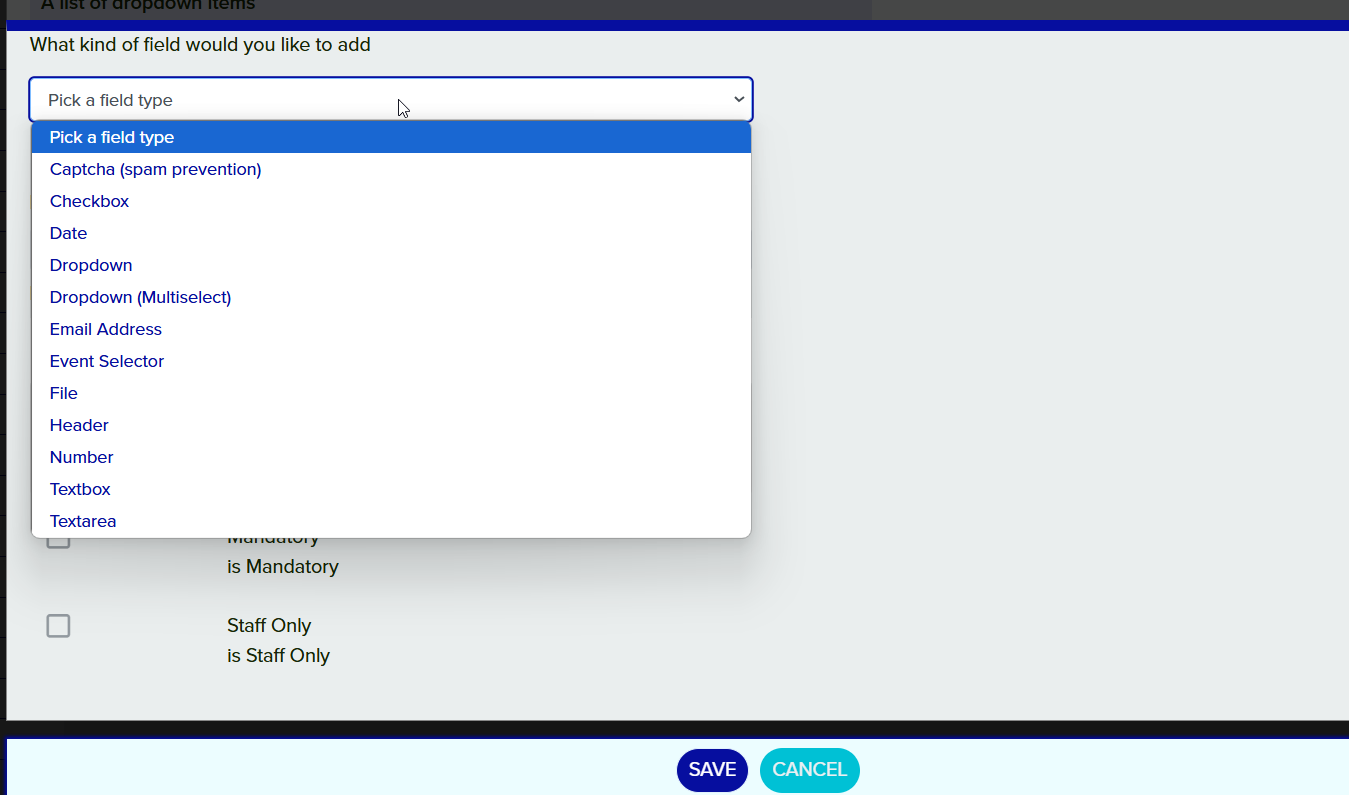
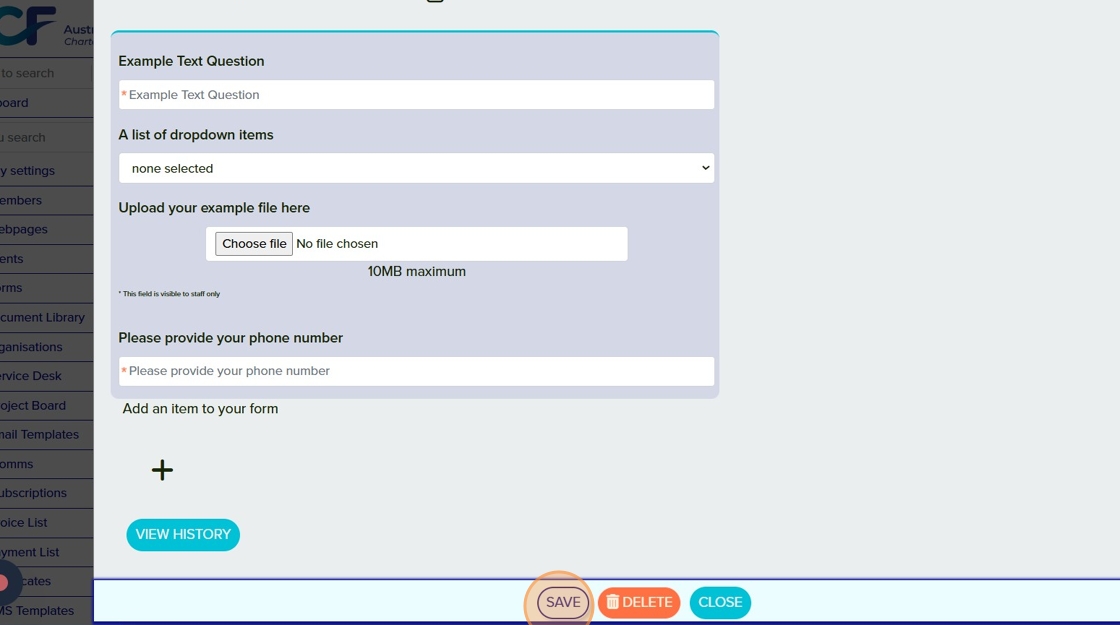
Start adding your form fields. Available form fields are:
- Captcha
- Checkbox
- Date
- Dropdown
- Dropdown (multi)
- Email Address
- Event selector (shows a list of active events)
- File upload
- Header
- Number
- Text box
- Text area (for longer answers)
Form fields can be made mandatory and/or "Staff only".
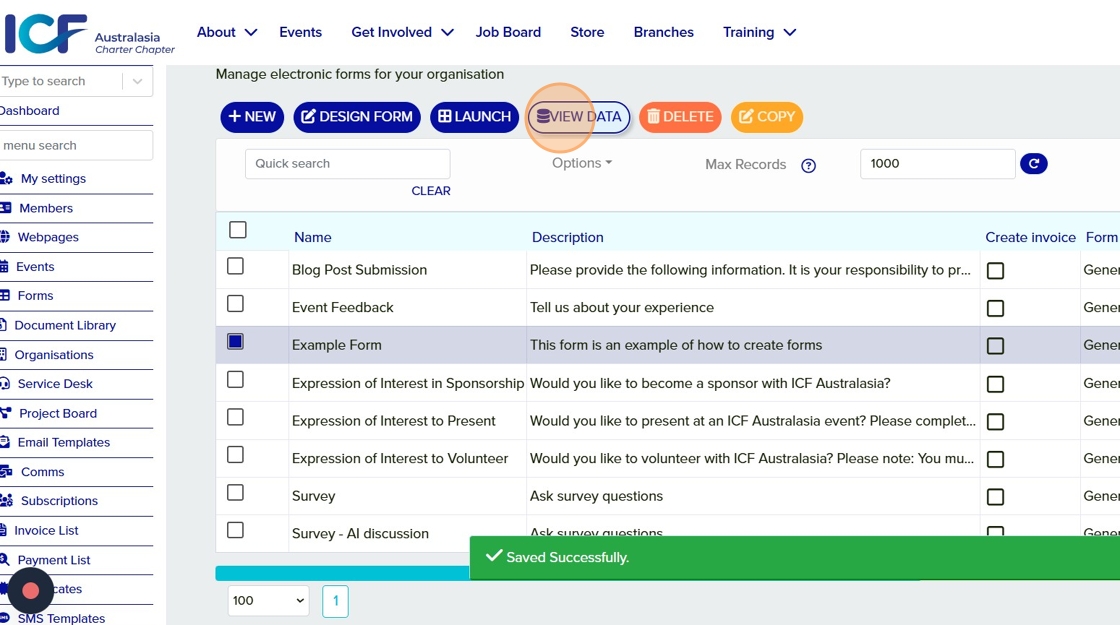
Once you have designed your form, select Save
You can now place this on a webpage, using a Form web component. See our example form below.
Navigate to the Forms tab
- Double click on the form you would like to edit
- Add the new fields or settings as required
Save the changes
×